
Fogbottom Visual Image Sequencer
Version 1.1.1 · Free · Windows 64-bit
Arrange a set of images in the order you want, then export numbered copies of them. Your original images are not renamed, deleted or recompressed, and the application works offline.

What it is for
When a project depends on pictures being in a precise order — for example the pages of an illustrated book or a sequence of artwork — Visual Image Sequencer (VIS) lets you put them in order visually by dragging thumbnails. It then exports copies with consistent numbered filenames, such as page-001.png, page-002.png and so on.
The copies are byte-for-byte identical to the originals, with their image metadata kept. Existing files in the output folder are never overwritten.
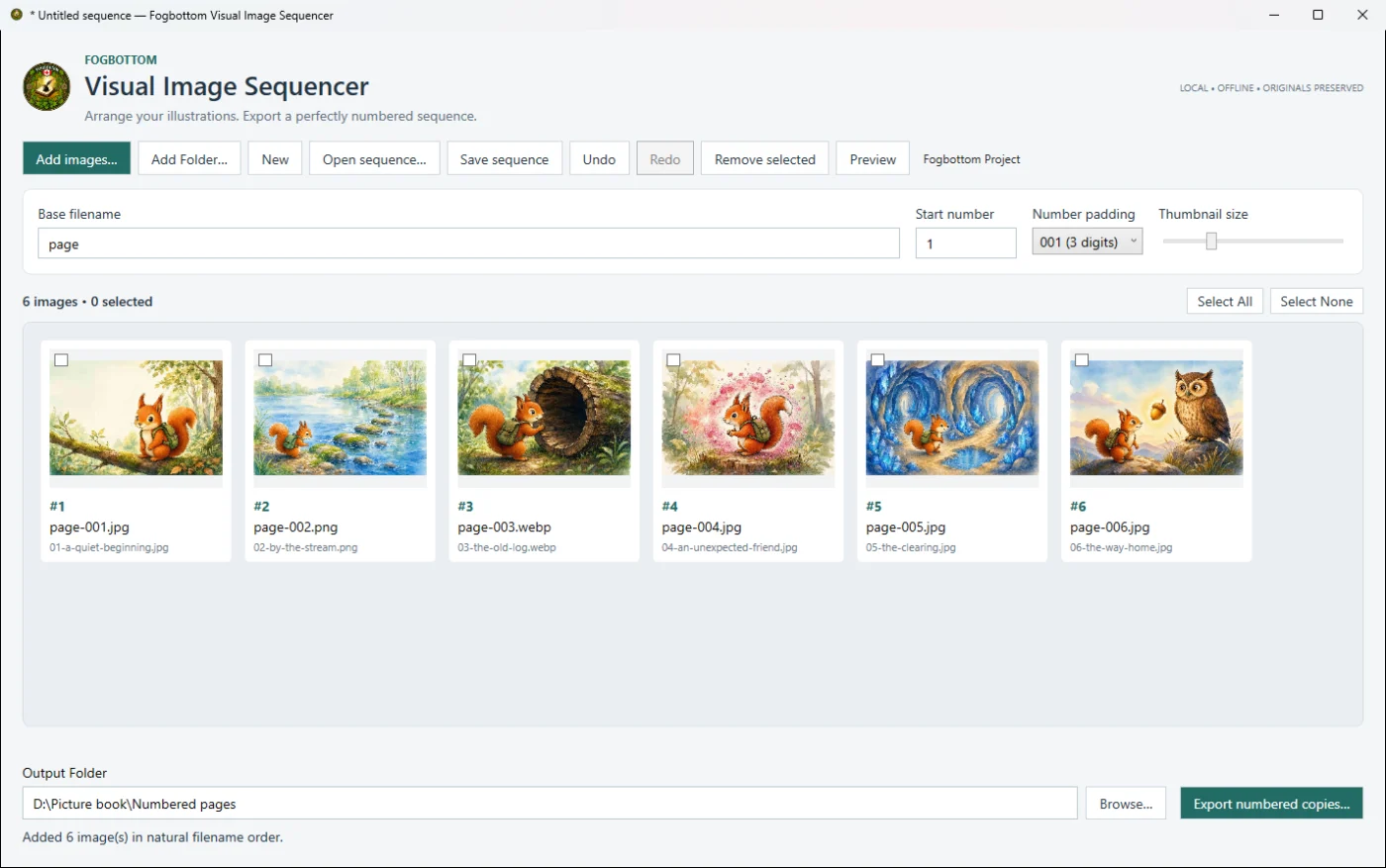
Main features
- Add images your wayAdd individual images or a folder, or drag files and folders from File Explorer. JPG/JPEG, PNG and WebP are supported. New batches are sorted naturally by filename.
- Arrange by draggingDrag a thumbnail to a new position; a marker shows where it will go. Adjust the thumbnail size and double-click an image to preview it.
- Flexible selectionCheckboxes, Select All and Select None, Ctrl-click and Shift-click ranges. Remove selected images from the sequence without touching the files.
- Undo and RedoAdding, removing and rearranging images can be undone and redone.
- Numbered exportSet the base filename, starting number and number padding, and see the resulting names as you type. Export shows progress, can be cancelled, and reports anything that was not exported.
- Save and reopenSave a sequence as a
.fvisproject with its order, naming settings and output folder, and open it again later. - Fogbottom project exchangeImport and export Fogbottom Project (
.fogx) files, optionally embedding every image for a single portable file. - No conversionsImage bytes are copied exactly; extensions and embedded metadata are kept.
System requirements
| Operating system | Windows, 64-bit (x64). Windows 11 x64 is the tested target. |
|---|---|
| Other software | None. No separate .NET runtime or Node.js is needed. |
| Permissions | No administrator access needed. The Windows temporary folder and your local application-data folder must be writable. |
| Image formats | JPG/JPEG, PNG and WebP. Images above 50 megapixels are not previewed. |
| Internet | Not required. The application works offline. |
Installing and getting started
Installer
- Run
Fogbottom-Visual-Image-Sequencer-1.1.1-Setup.exe. It installs for your Windows account only, without administrator access, and adds the program to the Start menu under Fogbottom. A desktop shortcut is optional. - To uninstall, use Settings › Apps › Installed apps. Uninstalling removes only the program files; your images, projects and exported copies are never removed.
Portable ZIP
- Right-click the downloaded ZIP and choose Extract All.
- Open the extracted folder and double-click
Fogbottom.VisualImageSequencer.exe. Keep the included licence and notices with the program.
Basic use
- Choose Add images or Add Folder, or drag images onto the window.
- Drag thumbnails into the order you want.
- Set the base filename, starting number and padding.
- Choose an existing, writable output folder and select Export numbered copies.
The README included with the program explains projects, exchange files and the known limitations in full.
Visual Image Sequencer 1.1.1 — Downloads Temporarily Unavailable
Downloads temporarily unavailable while we correct an image-ordering issue. The application remains free for personal, educational and commercial use.
Windows installer Recommended
Installs for the current user with Start menu entry and uninstaller.
Download installer (.exe)- File
- Fogbottom-Visual-Image-Sequencer-1.1.2-Setup.exe
- SHA-256
- 4460e034acc6bc832ee435ed76007969f3fc624ba7b6bc64f77c1f1891f1e57c
Portable ZIP
No installation: extract the folder and run the program from it.
Download portable ZIP- File
- Fogbottom-Visual-Image-Sequencer-1.1.2-win-x64.zip
- SHA-256
- 9955032759d4edb1578a345546c3c4623bd7a6adeb9cd3ce04f5e4164c75d1c6
Unsigned program: Windows may show a warning
This release is not code-signed. Windows SmartScreen may show “Windows protected your PC”, and your organisation's security policy may block it. Before running it, confirm the file came from fogbottom.com and that its SHA-256 checksum matches the one shown above. Don't turn off Windows security protection.
To check a checksum, open PowerShell in your Downloads folder and run:
Get-FileHash .\Fogbottom-Visual-Image-Sequencer-1.1.1-Setup.exe -Algorithm SHA256
All checksums are also listed in SHA256SUMS.txt.